Undo AI in Visual Studio Code
Undo’s Time Travel Debug for C/C++ extension can automatically configure GitHub Copilot in Visual Studio Code to use UDB as an MCP server. Once configured, Copilot can analyse Undo recordings to gather the runtime context it needs to solve complex problems.
Added in version 10.0.
Prerequisites
VS Code 1.101.0 or later — earlier versions do not support the MCP functionality required by this integration.
Time Travel Debug for C/C++ extension version 2.1.12 or later — installed and activated in VS Code. This version adds the option for MCP server auto-configuration.
A Copilot account with MCP servers enabled — in larger organizations, MCP server support is controlled by a GitHub administrator. See the GitHub Copilot documentation for details.
A capable model — newer, more capable models will generally produce better results. See Choosing a model.
UDB 10.0.0 or later on your
PATH, with AI features licensed — the extension checks the version at connection time and shows a warning if the requirement is not met. Runundo mcp --checkto verify that AI features are enabled in your installation.
Enabling auto-configuration
Auto-configuration is disabled by default. To enable it:
Open the command palette (Ctrl+Shift+P).
Run UDB: Configure MCP Server Auto-Configuration.
Select Enable.

Once enabled, the extension registers the MCP server each time VS Code starts, and re-checks whenever you change any of the relevant settings described below.
Note
This setting is stored per machine. If you connect to a new remote host via the Remote - SSH extension, you must enable auto-configuration on that machine too.
Verifying the MCP server registration
To confirm the server has been registered:
Open the Copilot chat panel.
Switch to Agent mode.
Click the slider icon next to the chat model selector to open the tool list.
Look for a server named Undo or UDB.
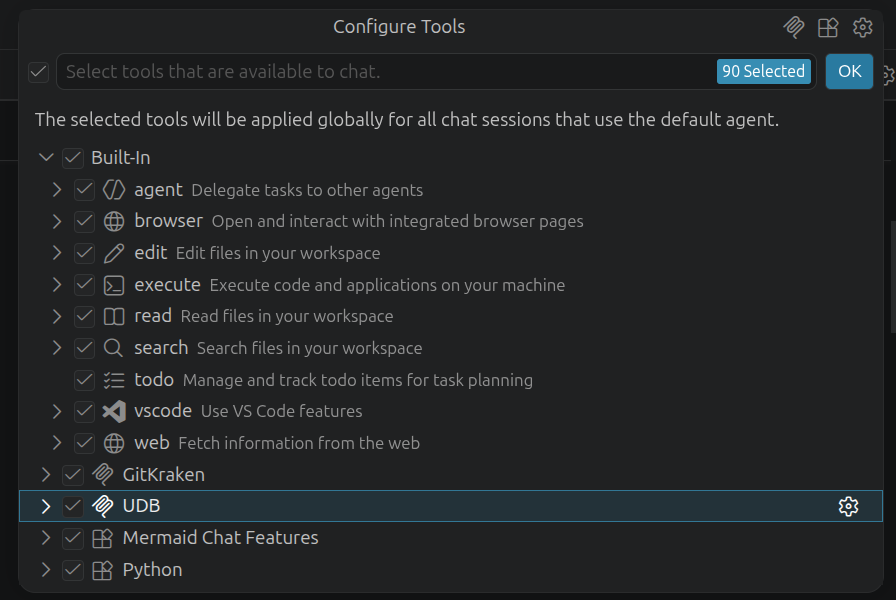
There is no need to start the server manually — Copilot starts and manages it automatically.
Using the MCP server
The server uses Undo recordings to investigate a program’s recorded execution history. It does not start an interactive VS Code debugging session.
Open the Copilot chat panel and switch to Agent mode.
Select a capable model (see Prerequisites above).
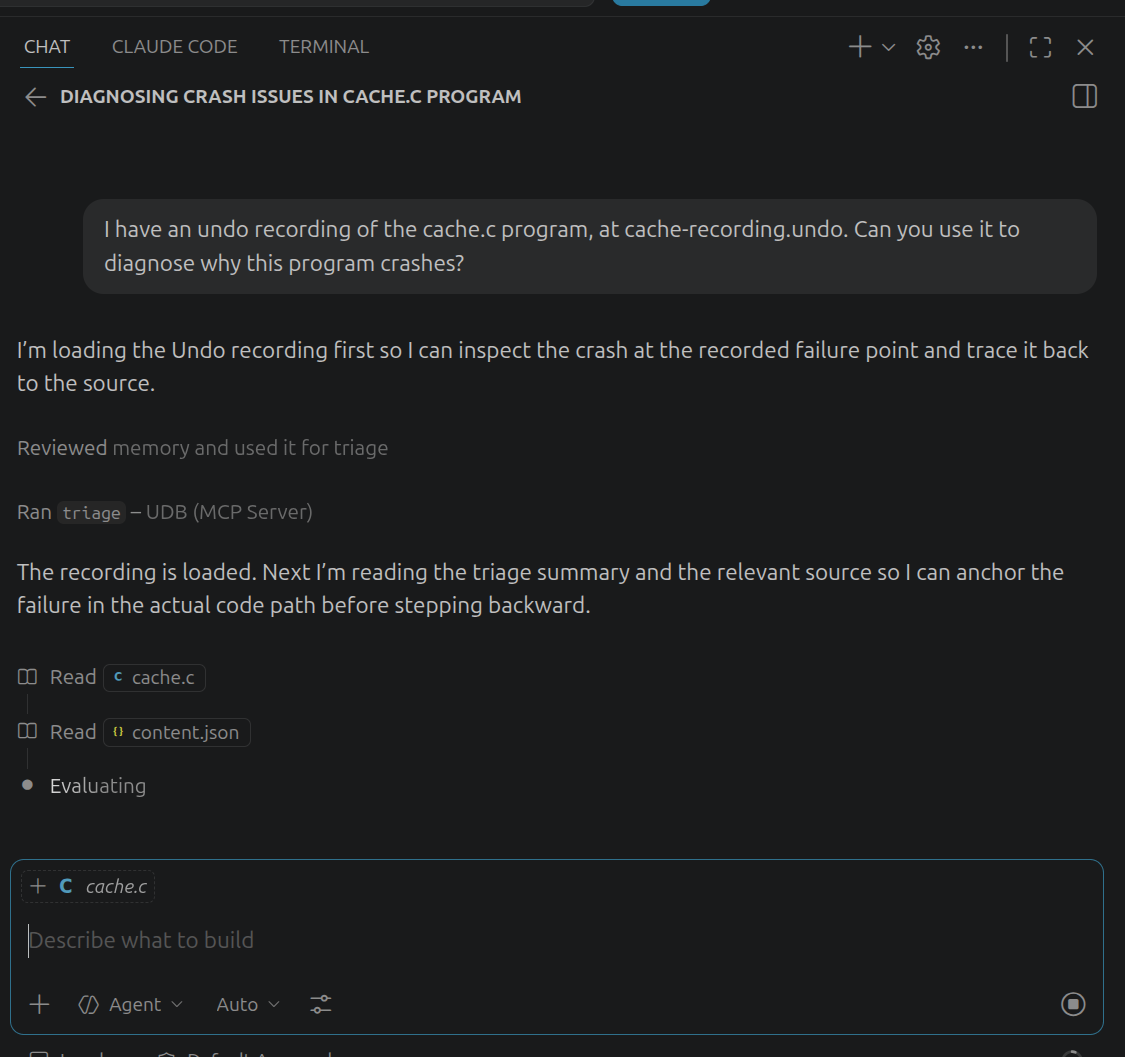
Ask a question referencing an Undo recording you want to investigate. Copilot will use the server automatically when appropriate.
If Copilot does not reach for the UDB tools, prompt it explicitly: “Use the UDB MCP server to investigate this recording.”
Troubleshooting
- Server not appearing in the tool list
Confirm that auto-configuration is enabled and that
udbis on thePATHthat VS Code uses. On Linux, VS Code inherits the environment it was launched from, not your shell’sPATH. Open the integrated terminal and runecho $PATHto check.- “UDB version 10.0.0 or later is required”
The extension found
udbbut it is too old or was not built with AI features. Update UDB to 10.0.0 or later with AI support, or contact Undo Support.- “AI features are not enabled”
Your UDB version meets the version requirement, but AI features are not enabled in your license. Contact Undo Support to upgrade your license.
- Remote SSH — server not starting
Auto-configuration and the UDB path are stored per machine. If you have connected to a new remote host, you may need to enable auto-configuration and set the UDB path again on that machine.
Custom UDB path
If UDB is not on your PATH, or you want to pin a specific installation:
Open the command palette (Ctrl+Shift+P).
Run UDB: Set UDB MCP Launcher Path.
Use the file picker to choose the
udbexecutable.
Note
This path is stored per machine. If you connect to a new remote host via the Remote - SSH extension, you will need to set the path again on that machine.